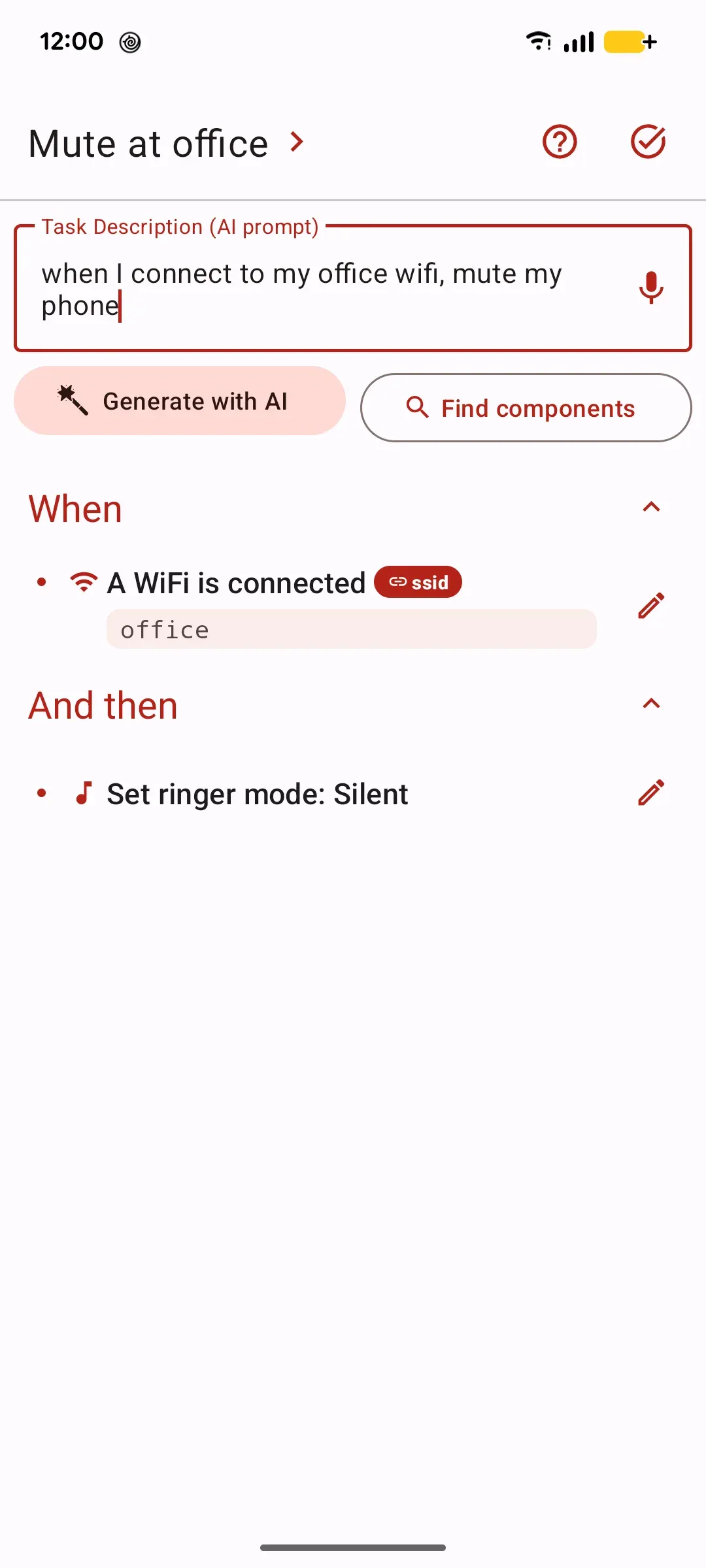
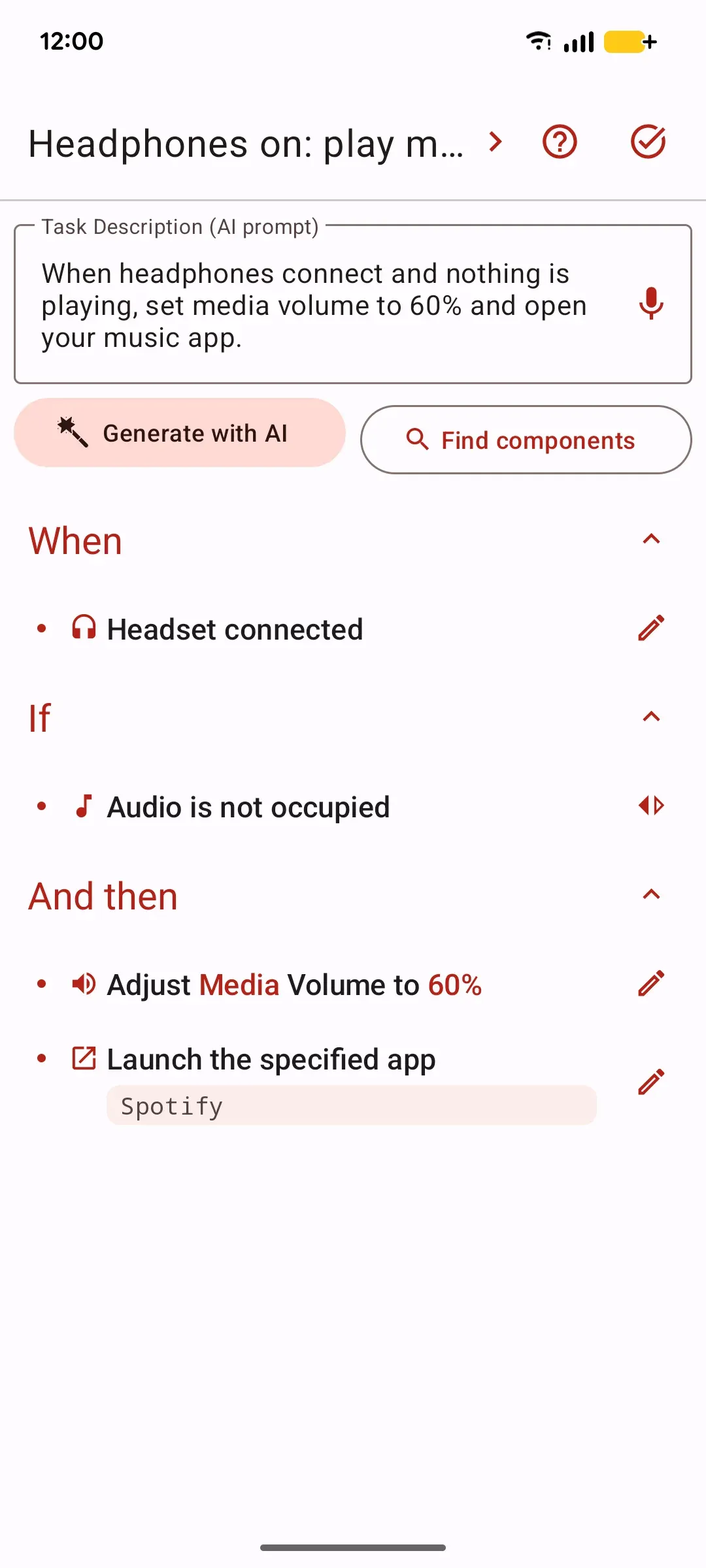
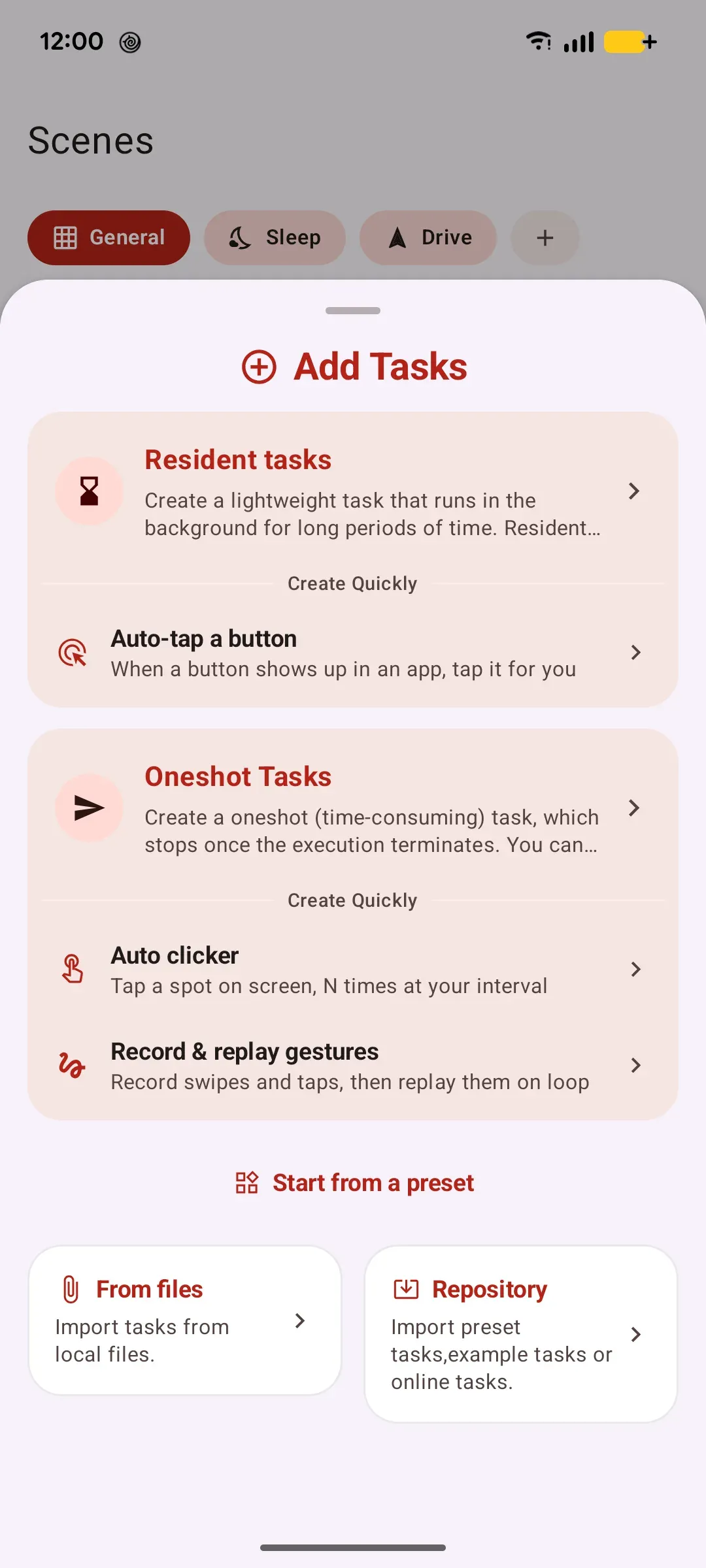
In the task editor, type what you want in plain words and tap the AI button. The app drafts a full task for you, which you can then review and adjust.
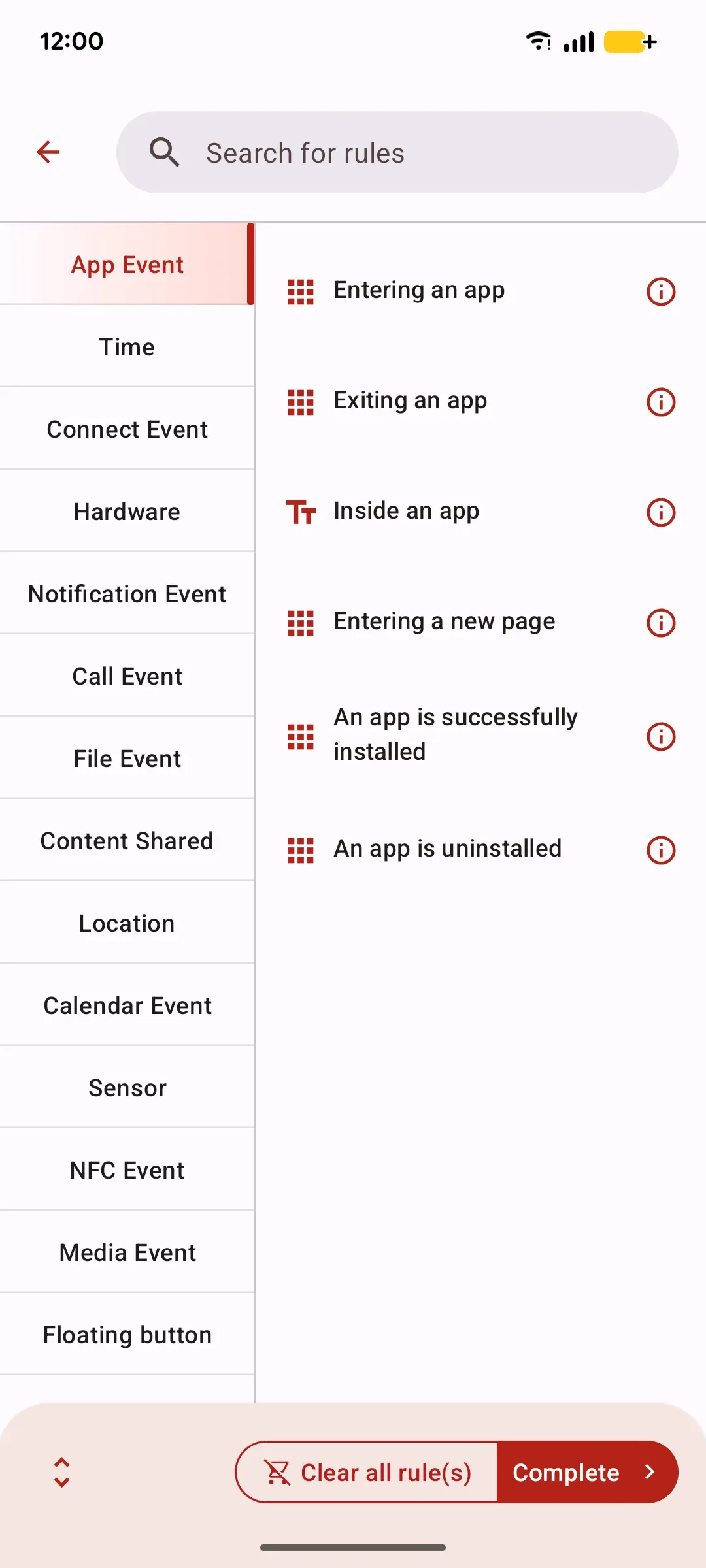
Almost anything the phone notices: opening or leaving an app, a clock time or your alarm, connecting to Wi-Fi, Bluetooth or a headset, the screen turning on or off, charging, a battery level, the text of a notification, something shared to the app, or a shake. You can also skip events entirely and start a task from a floating button. Location, calendar, calls, NFC and the face-down and back-tap gestures need Pro.
Make sure the service is running and the task is enabled. Most triggers also need the Accessibility service granted and the app kept alive in the background (check battery settings).
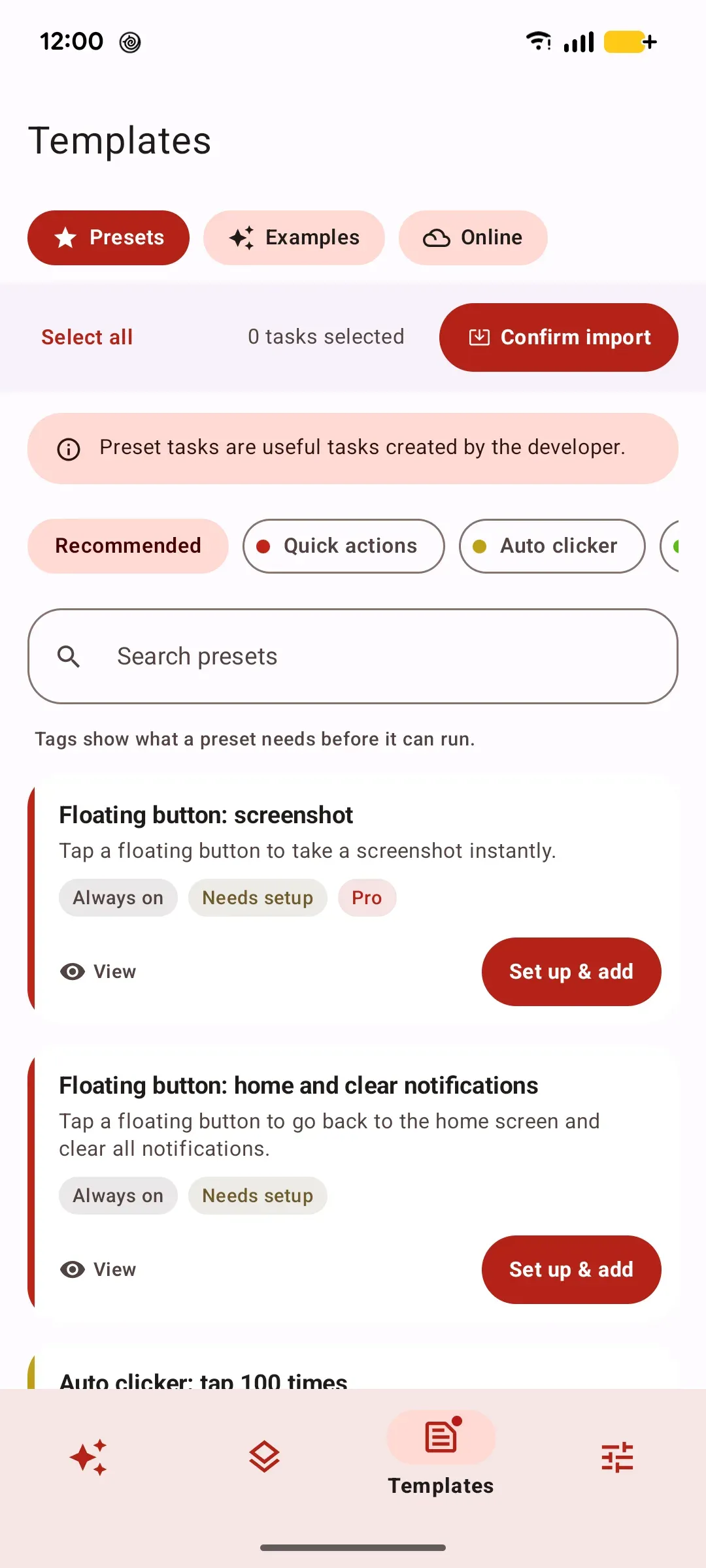
Open Templates › Presets, pick a category and tap Add. Presets marked “Set up” ask for one or two details (an app, a floating button, your Wi-Fi name) and then turn on right away. Tap a preset’s status chip to see which permission it still needs. Tasks triggered only by floating buttons or physical keys don’t count toward the free resident-task limit.
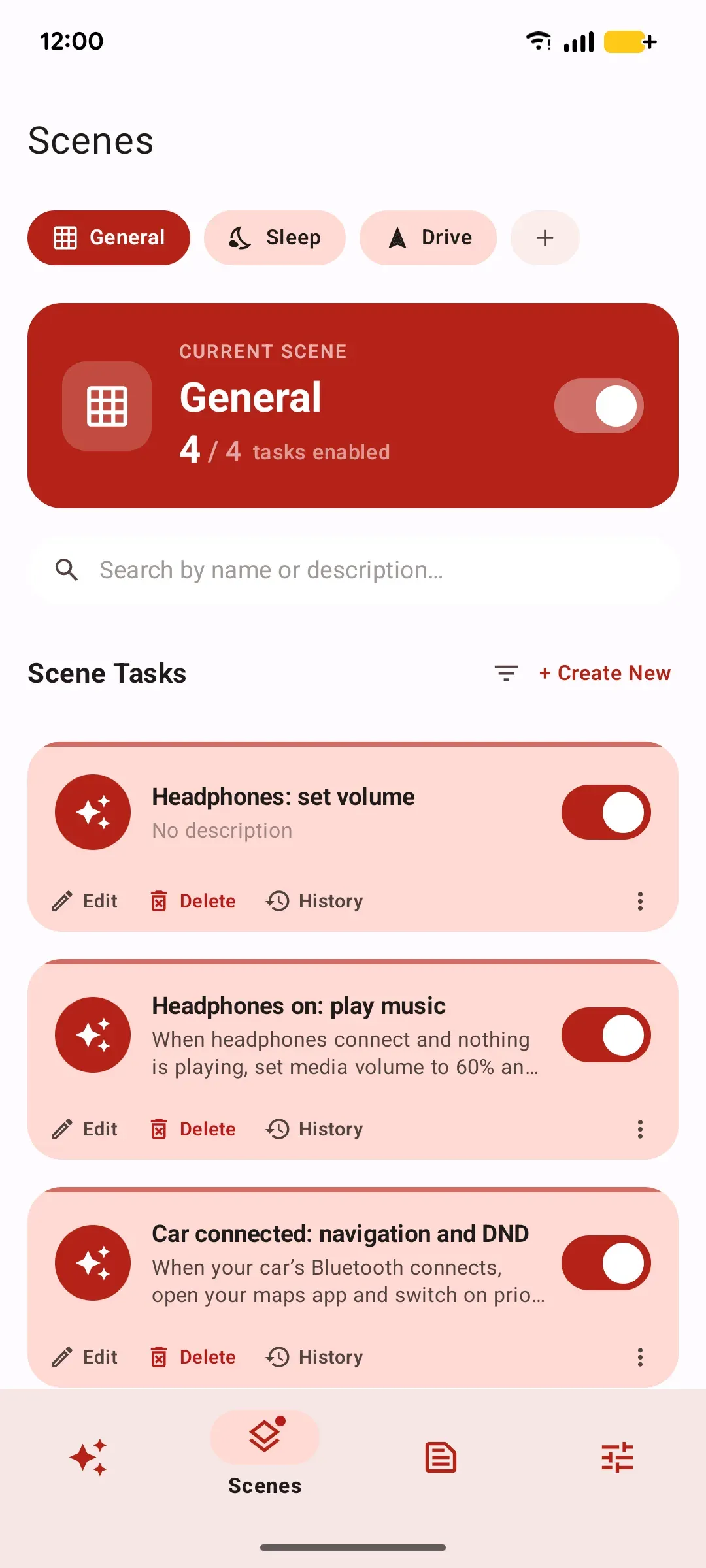
A resident task keeps watching for its trigger and runs automatically whenever the condition is met. A one-shot task runs once, right when you tap it. Use resident for automation that should react on its own; use one-shot for actions you start by hand.
Each one backs a specific feature, so you only need to grant the ones you use. Accessibility is how WhenDo reads the screen and taps for you; without it, screen automation and app events stop. Overlay draws the floating buttons and prompts, and cannot read your screen. Location is only for Wi-Fi names and geofences, and microphone, camera, calendar and phone state are used only by the actions that need them. Network is used for AI generation, the online preset library, remote configuration and anonymous usage statistics.